
Are you thinking of doing a phone reset for 2027? If you are, then you’re in the right place. Today, I’ll show you how to reset your phone so you can finally get rid of all that digital clutter you’ve been accumulating, organize the things you actually need, and start fresh with a phone that feels a lot less messy.

If you’re like me and so many other people right now, your phone probably has hundreds (or even thousands) of photos you haven’t looked at in a while, apps you downloaded months ago and completely forgot about, screenshots you were supposed to come back to but never did, and a bunch of other things that have been piling up unchecked for some time.
And while none of these things might seem like a big deal on their own, eventually you get to the point where you can’t find something you’re looking for, your storage is almost full, your notifications are constantly going off, and even finding an app you need becomes more annoying than it should be.
So, if you’ve spent the past few months ignoring all the little things that need cleaning up on your phone, and you want to get everything back in order before 2027, here are 17 simple things you can do for a complete phone reset.
And the best part is that you don’t need to upgrade your phone or spend an entire weekend doing this either. Just work your way through the list, starting with the things that need the most attention.
Before You Start Your 2027 Phone Reset
Before you start deleting things from your phone, there are two things you should do to make the entire process a lot easier.
First, back up your important information. This includes your photos, contacts, important documents, and anything else you wouldn’t want to lose. Make sure to check that your backup has actually finished before you start deleting large amounts of anything, and remember that deleting something from a synced phone can sometimes delete it from your cloud storage too.
Second, check how much storage space you have available. You can usually find this in your phone’s settings under Storage or General, depending on the type of phone you have. This is important because it gives you a better idea of what’s taking up the most space on your phone and whether that’s photos, videos, apps, or downloaded files. And it can give you somewhere to start.
And don’t worry if your phone is an absolute mess right now since these tips below will help you fix that even if you don’t try to organize everything perfectly and all at once. I recommend you start by simply going through the list and finding what’s been stressing you out the most, then starting there.
How To Do A Complete Phone Reset For 2027
1. Delete Apps You Haven’t Used In Months
First things first, go through all the apps on your phone and delete the ones you no longer use. For this step, think apps like those random games you downloaded but don’t use, photo editing apps you tried for a few days, shopping apps you’ve completely forgotten about, and all the other apps that you’ve downloaded but haven’t opened in at least six months. If you can’t think of a good reason to keep an app, you don’t need to let it take up space on your phone.
There will be some exceptions. For example, you should keep apps you only use when traveling or one you need for banking or account security. But everything else that you’re keeping around just because you might need it someday can probably go.
2. Clean Out Your Camera Roll
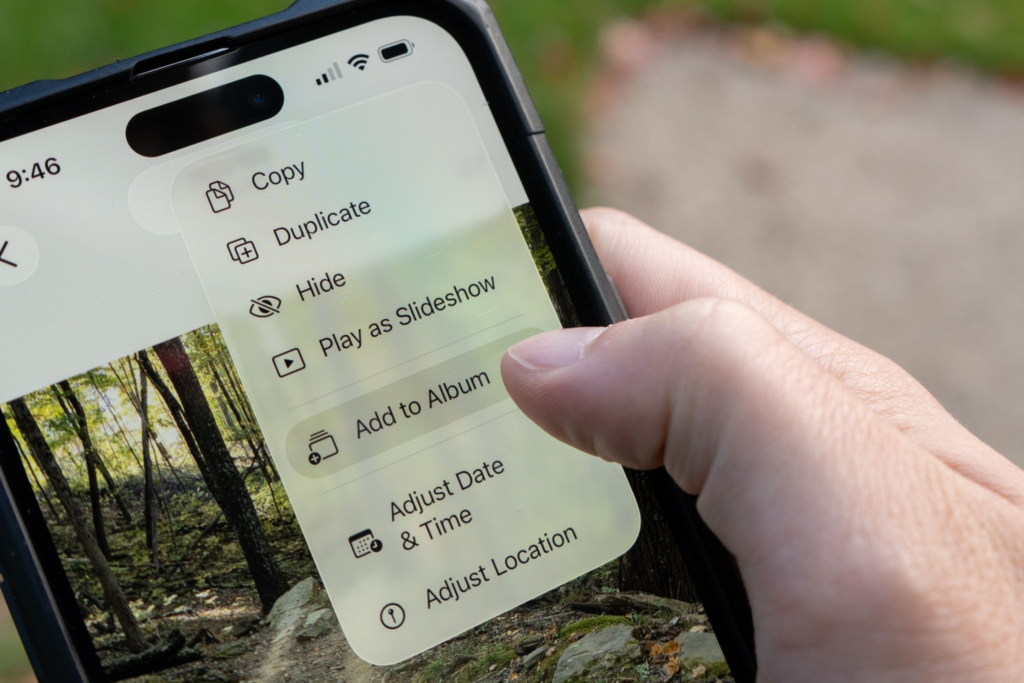
Next, let’s tackle your messy camera roll.
If you’re anything like me, you likely have all those screenshots, pictures of things you wanted to remember, duplicate photos, random videos, and 15 nearly identical pictures you took trying to get one good shot. And all these have turned into thousands of images you don’t actually need.
This can be a big job to clean up, so instead of trying to organize every single photo at once, you can start with the easiest things to get rid of: delete blurry pictures, delete accidental photos, delete duplicates, and delete old images you know you won’t need again.
Also, if you have years of photos to go through, it’s easier to spend 10 or 15 minutes per day cleaning out one month or one category at a time.
3. Deal With Your Screenshot Folder
Once you’ve dealt with your pictures, move on to all those screenshots which are likely in the high hundreds if not thousands. They’re usually screenshots of recipes, outfits you like, products you want to buy, important information you may need later etc that you though you’d come back to but most likely haven’t.
The first step is to go through your screenshot folder and delete anything that you haven’t looked at in months, forgot about or no longer need.
For those that you want to keep, try moving them somewhere more appropriate. For example, you can save recipes to a recipe collection, bookmark websites, and put important information into your notes. Then delete everything else. This both helps you to declutter you camera roll and remove the problam of having to scroll through 500 screenshots the next time you’re looking for something specific.
4. Organize Your Photos Into Albums You’ll Actually Use
Once you’ve gotten rid of the unnecessary pictures and cleaned up your screenshots, you can move on to organizing what you want to keep. Do so by creating a few albums that you save important photos to. And no, you do not need 25 different albums. Think a few ideas like: family photos, travel, important documents, recipes, home projects, or anything else you frequently look for.
And if your phone already has a good search feature, you might not even need many albums.
Organizing your photos makes it easier to find your pictures without needing to spend ages scrolling through your camera roll whenever you need something.
5. Clean Out Your Downloads Folder
Another important part of doing a phone reset is going through and cleaning up your downloaded files. Most people have downloads like old restaurant menus, PDFs, tickets from events that happened months ago, documents, and even some random images taking up storage space.
To clean this up, open your Files app or download manager and see what’s there. Then delete anything you no longer need, and move important documents into folders where you can easily find them again.
But make sure you’re not deleting important financial records, receipts, and other documents you might need later.
6. Close Old Browser Tabs And Delete Unnecessary Bookmarks
If you have a ton of browser tabs open because you keep telling yourself you’re going to read them later, this is something to reset. To do so, go through your tabs and close anything you no longer need, and bookmark the things you genuinely want to keep.
Also, while you’re at it, check your existing bookmarks and get rid of the links you’ve had bookmarked from years or months that you no longer visit as well as links that don’t work anymore etc.
Once you’ve gotten rid of the unnecessary ones, then you organize the rest into a few useful folders.
7. Give Your Home Screen A Makeover
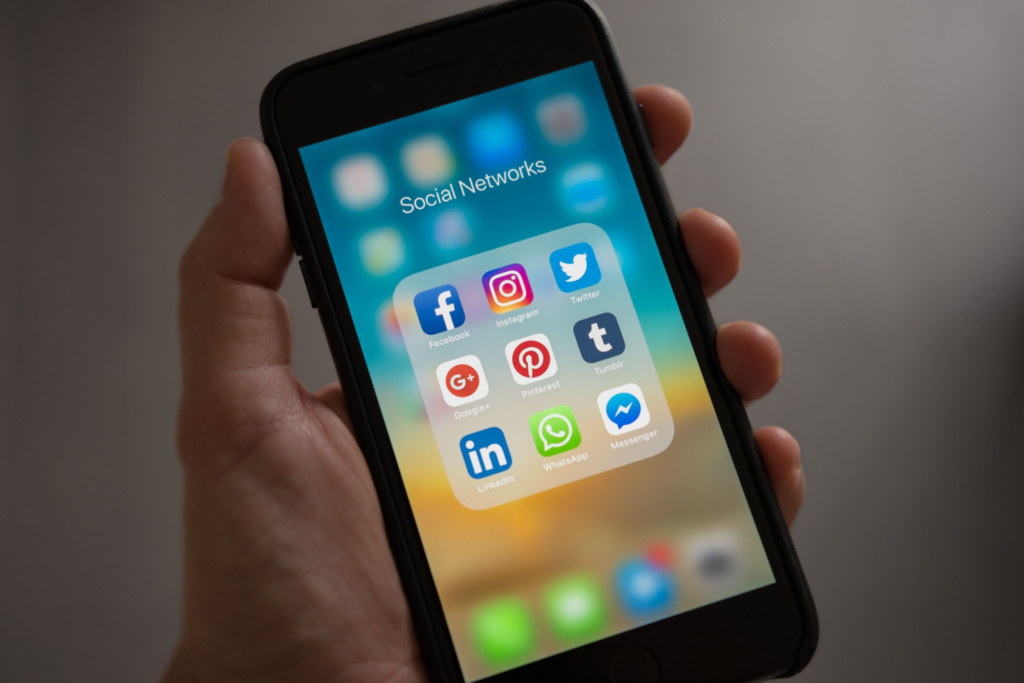
Another way to reset your phone is to clean up your homescreen that likely has apps that are scattered across several pages. And this only needs to take a few minutes.
To do this, keep the apps you use most often somewhere easy to reach and group similar apps into folders—unless they’re the ones that keep distracting you or causing you to spend too much time mindlessly scrolling. For example, you could have folders for shopping, finances, entertainment, photography, and productivity.But, make sure you’re not creating too many folders as this can be counterproductive and lead to more phone clutter.
Once you organize your homescreen in such a way that makes it super easy to find the things you use every day, then you’ve done a great job.
8. Turn Off Notifications You Don’t Need
If your phone is constantly lighting up with notifications from shopping apps, social media, games, and other things that don’t need your immediate attention, take a little time to fix that. You can do so by going through your notification settings and turning off alerts that aren’t important.
Unimprtant notifications are things like store sales, someone posting something on social media etc. Only keep notifications for things that matter like important messages, calendar reminders, and security alerts.
This makes it so that your phone feels a lot less busy since the noise is muted.
9. Clean Up Your Contacts
Your contacts may be another thing that needs to be reset on your phone. Do so by getting rid of things like duplicate numbers, old work contacts, people you no longer recognize, and numbers saved without proper names.
Also, update important numbers, add missing names and make sure the people you contact most often are easy to find.
And make sure before making major changes, check that your contacts are backed up or synced properly.
10. Delete Old Text Messages And Organize Important Conversations
Delete all those old promotional text message, delivery updates, verification codes, and random conversations you’ve received over the past few years.
You can also use this time to mute conversations that don’t require your immediate attention and pin important chats if your messaging app supports that feature. But be careful not to delete messages containing information you might need later, such as important addresses, agreements, or records.
This entire reset will make your inbox easier to manage.
11. Unsubscribe From Emails You Never Read
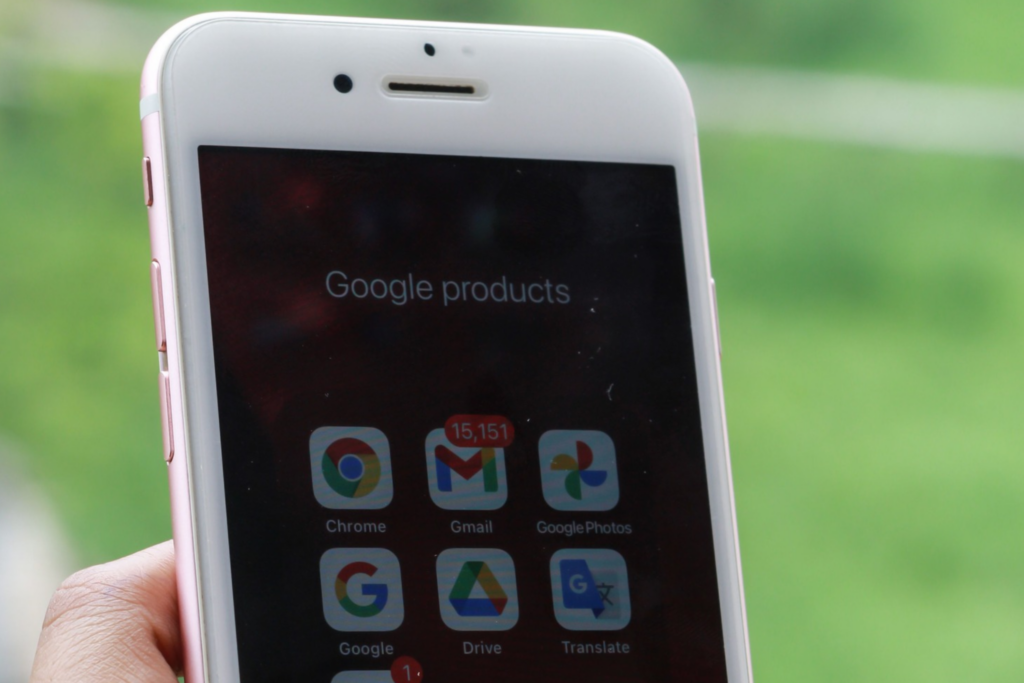
If your inbox is constantly filling up with promotional emails, newsletters you don’t remember signing up for, and updates from stores you haven’t shopped at in years, this is a good time to finally clean things up.
Start by unsubscribing from companies and mailing lists you’re no longer interested in, then delete old promotional emails that are just taking up space. You can also create a few folders or labels to keep important emails organized so they’re easier to find when you need them.
And if you come across suspicious emails, mark them as spam instead of clicking unfamiliar unsubscribe links.
12. Clean Up Your Notes App
If you’re using your Notes app for everything from grocery lists and random thoughts to recipes, passwords, and reminders, then there’s a good chance it’s gotten a little messy over time too.
To clean things up, start by going through your notes and deleting the ones you no longer need. Then, combine any duplicate lists, update information that’s no longer accurate, and organize the notes you want to keep into a few folders so you can actually find what you’re looking for when you need it.
And if you’re like me and have saved passwords or other sensitive information in your Notes app, consider moving those into a proper password manager instead. That way, you’re keeping your important information more secure while getting rid of some of the clutter at the same time.
13. Delete Old Accounts You No Longer Use
Another important thing to do during your phone reset is get rid of old accounts you’ve created over the years but no longer use. I’m talking about shopping websites, games, social media platforms, and random apps you signed up for once and completely forgot about.
To do this, go through your saved logins or password manager and look for accounts you no longer need. Then, sign in and delete those accounts if the service allows it. Just make sure you save any important information and cancel active subscriptions before closing an account.
Also keep in mind that simply deleting an app from your phone doesn’t delete the account associated with it, so you’ll need to close the actual account if you want to get rid of it completely.
14. Check Your App Permissions
Also go to your settings, take a few minutes to review which apps have access to your location, camera, microphone, contacts, and photos.
It might actually shock you to see how many permissions you’ve granted over time. Once you’ve check this out, if an app doesn’t need access to something to work properly, consider turning that permission off.
15. Update Your Phone And Important Apps
Another useful thing to include in your 2027 phone reset is checking for software updates. Make sure your phone’s operating system is up to date and that the apps you regularly use have their latest available updates.
Also, before installing a major operating system update, make sure your important information is backed up and that you have enough storage space available.
16. Review Your Passwords And Account Security
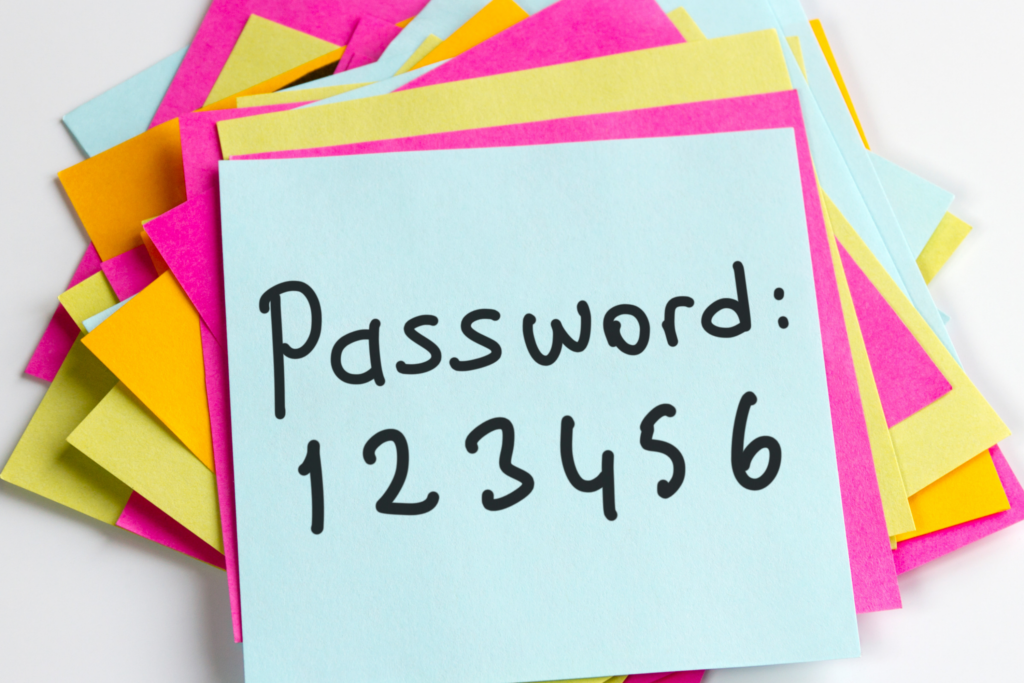
Since you’re already cleaning up your digital life, you should also check whether your important accounts are properly secured. You can start with your email, banking, and other accounts that contain personal or financial information.
Make sure you’re using strong, unique passwords, and turn on two-factor authentication wherever it’s available. And, if you’ve been using the same password for several different accounts, consider using a reputable password manager to help you create and store unique passwords.
17. Set Up A Simple Routine To Keep Your Phone Organized
Once you’ve finished cleaning everything up, the last thing you want is for your phone to become just as messy again in a few weeks. This is why I think it’s very important to set aside 10 or 15 minutes every week or two to do a quick phone reset.
You could do this on Sunday as part of your weekly reset routine.
Simply make sure you’re keeping on top of things by deleting unnecessary screenshots from the last week or two, clearing out your downloads, removing apps you no longer need, and checking whether anything needs organizing.
You don’t have to go through all 17 steps every time, but, once you deal with things before they start piling up again, and make this is regular habit, you’ll make it so much easier for yourself to keep your phone organized and less cluttered.
How Long Should A Phone Reset Take?
I’d say that this really depends on how much you have to clean up. For instance, if your phone is already fairly organized, you may be able to get through most of these tasks in an hour or two. But if it’s the opposite, it could take a little longer.
I wouldn’t recommend trying to sort through 20,000 photos or years of old messages in one sitting, but you can break this task up over a few days. For example, you could spend one day deleting unnecessary apps, another day cleaning out photos, and another organizing your home screen and checking your settings.
That way, you can make real progress without turning a simple phone reset into another huge project that you start putting off for later…and then never get to.
If you’ve made it this far, chances are your phone has gotten a little out of control over the past year, and you’re ready to get things cleaned up and organized again before 2027.
Hopefully, these phone reset ideas have given you a good place to start, whether that means deleting apps you no longer use, organizing your photos and important information, or finally cleaning up some of those little digital messes you’ve been putting off for months.
And once you’ve gotten everything back in order, try to keep up with the little weekly resets I mentioned earlier so you don’t end up having to do everything all over again a few months from now.